The Problem: HEIC vs The Web
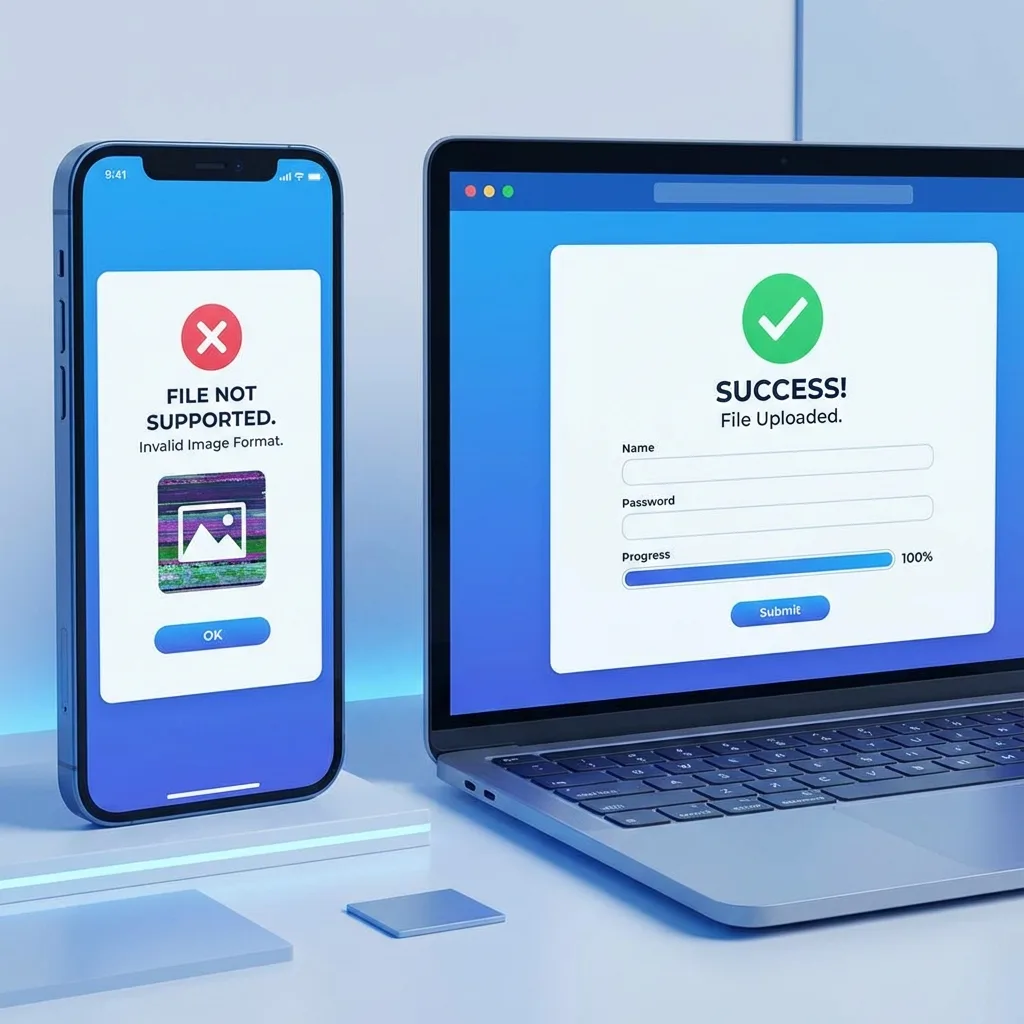
Since iOS 11, iPhones save photos as HEIC (High Efficiency Image Container) by default. While great for saving space, this format is NOT widely supported by web browsers or old systems.
When a website asks for an image, it usually expects a weirdly specific standard format like JPG or PNG. If you try to feed it a HEIC file, it simply chokes.
- ❌ ⚠️ Invalid file type. Please upload a structured file.
- ❌ ❌ File format not supported. Allowed: JPG, PNG, PDF.
- ❌ 🚫 Upload failed.
For specific US portal upload issues: Fix HEIC Upload Errors on US Portals.
Why does iPhone use HEIC? Discover Why iPhone Changed Photo Format.
Solution 1: The Instant Fix (Recommended)
Scroll up to our free converter at the top of this page.
Select your HEIC photos.
Tap 'Convert' and download the JPG versions.
Upload the new JPGs to the website. Success! 🎉
Solution 2: Change Camera Settings (For Future)
If you want to stop this from happening ever again, you can tell your iPhone to stop using HEIC.
Go to **Settings** > **Camera**.
Tap on **Formats**.
Select **Most Compatible** (this switches to JPEG).
Solution 3: Export from Photos App
If you are on a Mac, you can open the Photos app, select the image, and go to File > Export > Export Photo. Ensure 'JPEG' is selected as the Photo Kind.
You Might Also Like

Fix: HEIC Upload Error for USCIS, US Passport, and DV Lottery
Are you applying for a US Green Card, renewing your Passport online, or entering the DV Lottery? If you used your iPhone to take your photo, you likely have an HEIC file that the government portal will reject. Here is how to fix it and ensure your application isn't delayed.
Convert iPhone Photos to JPG — Free & Easy
Struggling to share iPhone photos? HEIC is great for storage but bad for compatibility. Here’s how to convert them to JPG in seconds.
Best Free HEIC to JPG Converters 2026 — Top 5 Reviewed
Finding the right HEIC converter can save you time and frustration. We've tested dozens of tools and narrowed it down to the top 5 free HEIC to JPG converters. Whether you need browser-based conversion, batch processing, or desktop software, this guide will help you choose.