Why You Need a HEIC Converter
Apple's HEIC format creates smaller files with better quality, but it's not compatible with many devices and websites. Windows PCs, older Android phones, and most web platforms don't support HEIC natively.
That's where HEIC converters come in — they transform your iPhone photos into universally compatible JPG files.
For quick and direct conversion: Convert iPhone Photos to JPG.
What We Tested
We evaluated each converter based on:
- ✅ Conversion speed and quality
- ✅ Privacy (browser-based vs upload)
- ✅ Batch conversion support
- ✅ Ease of use
- ✅ Cost (100% free vs freemium)
Top 5 Free HEIC Converters
1. Our HEIC to JPG Converter (Best Overall)
100% browser-based conversion with zero upload. Drag and drop your HEIC files, and get instant JPG downloads. No file size limits, no sign-up required.
✅ Pros: Complete privacy, instant conversion, works offline, no ads
❌ Cons: Requires modern browser
Best for: Privacy-conscious users who want zero-compromise conversion
2. iMazing HEIC Converter (Best Desktop App)
Free desktop software for Mac and Windows. Excellent for batch converting hundreds of photos at once. Drag entire folders and convert them in seconds.
✅ Pros: Batch processing, offline use, preserve EXIF data
❌ Cons: Requires installation
Best for: Users who need to convert large photo libraries regularly
3. CloudConvert (Best for Bulk Conversion)
Web-based service supporting various formats. Free tier offers 25 conversions per day, which is enough for most users.
✅ Pros: Supports many formats, API available, good quality
❌ Cons: Daily limits on free plan, requires upload
Best for: Occasional users who need multi-format support
4. Convertio (Best Cross-Platform)
Popular online converter with a clean interface. Handles up to 100MB files on the free plan.
✅ Pros: Fast conversion, simple interface, mobile-friendly
❌ Cons: File size limits, occasional ads
Best for: Quick one-off conversions
5. HEIC.online (Best Minimalist)
No-frills converter that does one thing well. Upload HEIC, download JPG. Simple as that.
✅ Pros: Lightning fast, no distractions, mobile-optimized
❌ Cons: Basic features only
Best for: Users who want zero learning curve
📊 Quick Comparison Table
| Tool | Privacy | Speed | Usage |
|---|---|---|---|
| HEIC Image Convert | ✅ 100% | ⚡⚡⚡ | Free |
| iMazing | ✅ 100% | ⚡⚡ | Desktop App |
| CloudConvert | ❌ Cloud Upload | ⚡ | Paid |
How to Choose the Right Converter
For maximum privacy: Use our browser-based converter or iMazing — your files never leave your device.
For bulk conversion: iMazing or CloudConvert handle large batches efficiently.
Pro Tips for HEIC Conversion
- 💡 Always keep your original HEIC files as backup before converting
- 💡 For web uploads, JPG quality of 85-90% is perfect balance of size and quality
- 💡 Check if your target platform now supports HEIC natively (many do in 2026)
- 💡 For social media, convert to JPG first to avoid automatic compression
Bottom Line
If privacy is your top priority, use our browser-based converter. For batch processing hundreds of photos, go with iMazing. For occasional use, any of the online tools will work fine.
Related Resources
Learn about the difference between HEIC and JPG, or read our guide on why iPhone uses HEIC. If you want to view iPhone photos on Windows, see how to open iPhone photos on Windows.
You Might Also Like
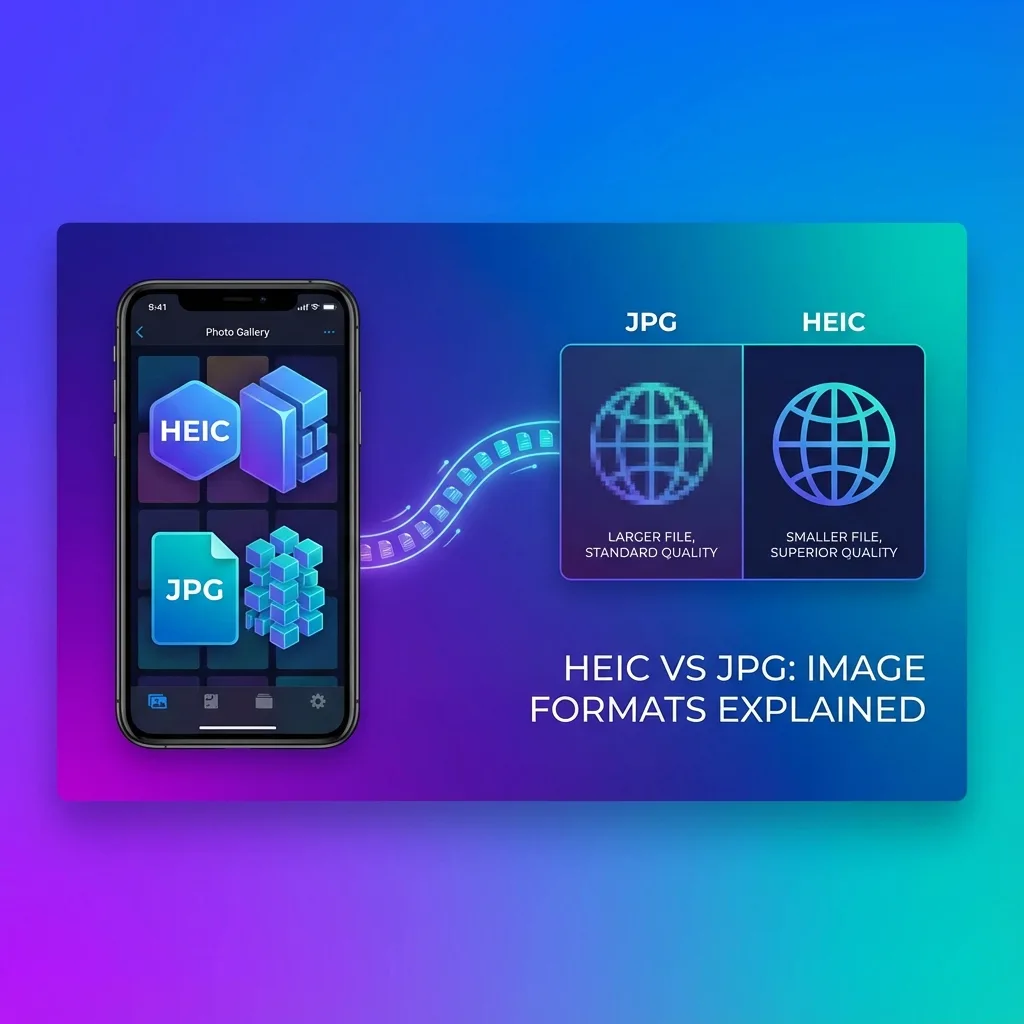
HEIC vs JPEG — Which Should You Use?
Choosing between HEIC and JPEG? Learn why your iPhone saves in HEIC and when you should convert to JPG for better compatibility.
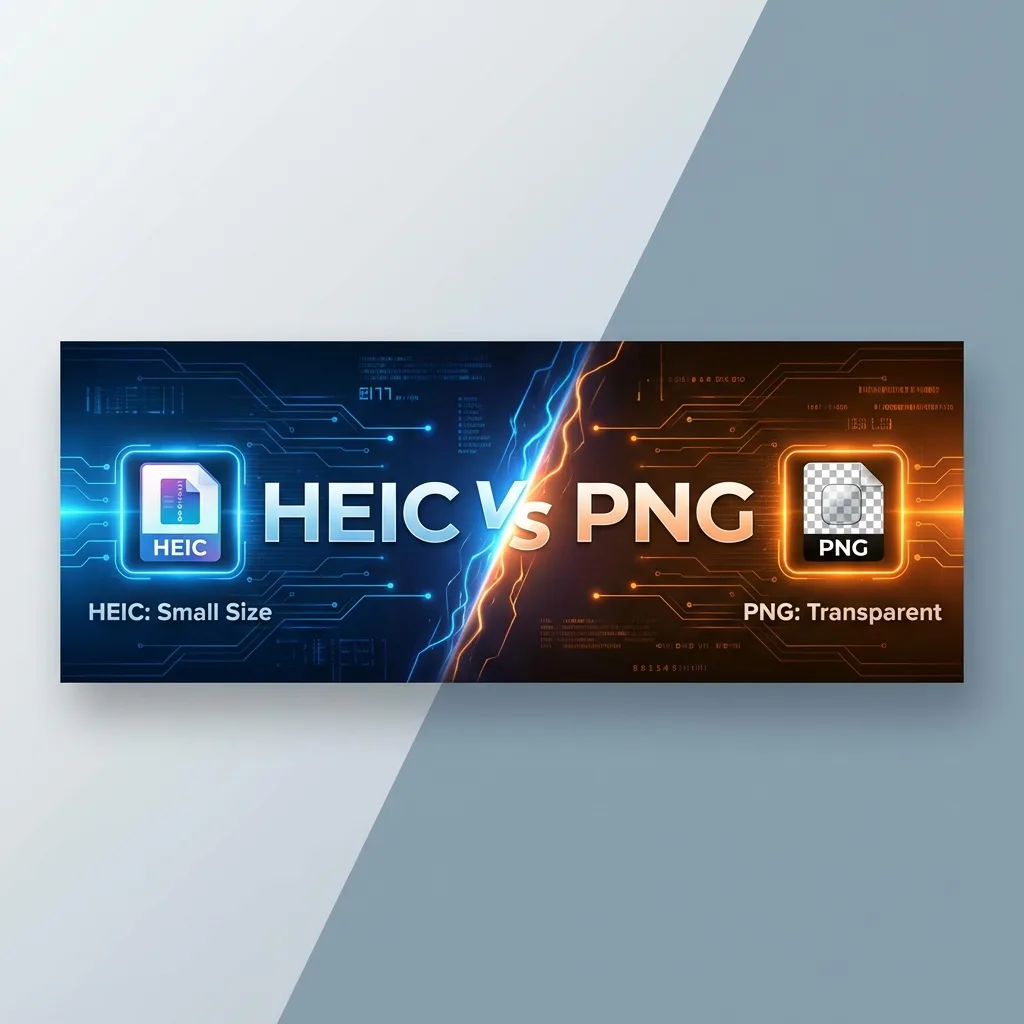
HEIC vs PNG: Which is Better for Quality and Transparency?
While HEIC competes with JPG for photography, it competes with PNG for quality and features. Both support transparency and high quality, but they have very different use cases. Which one should you choose?