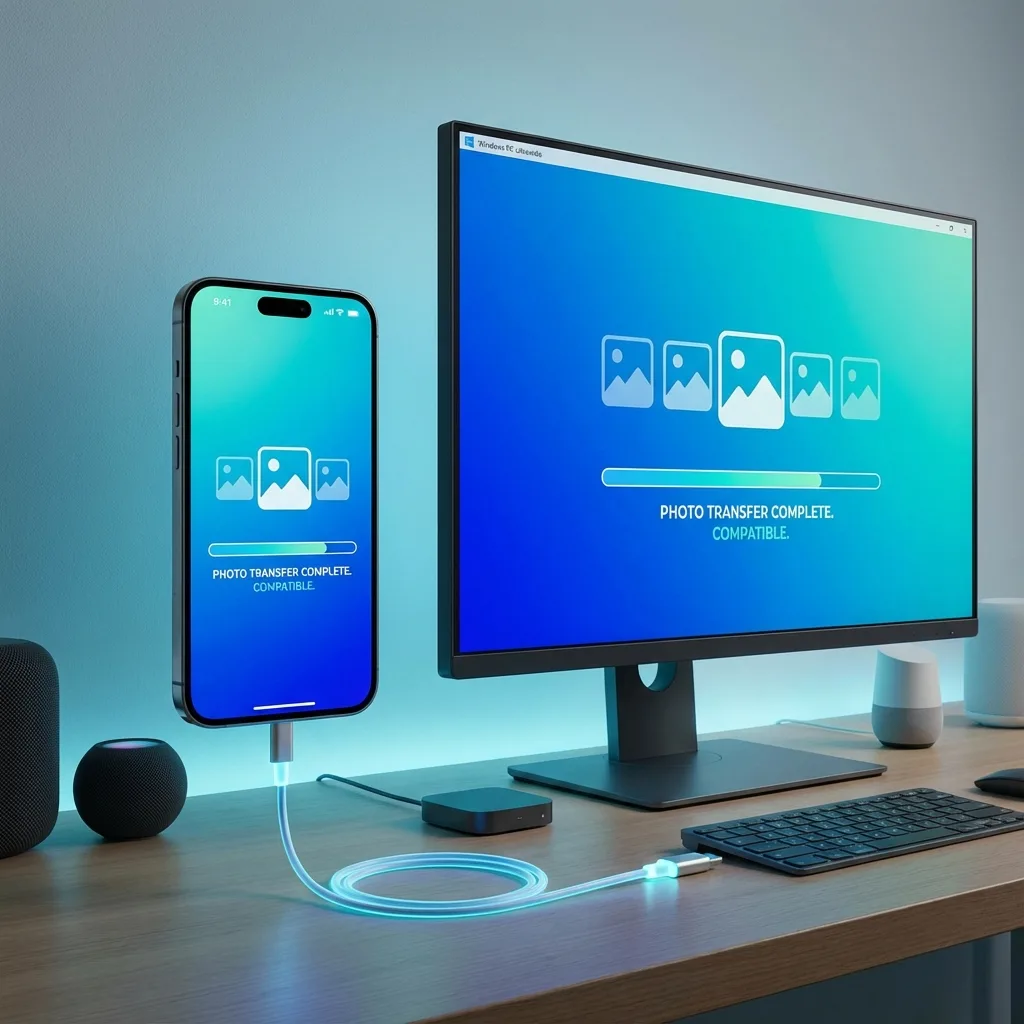
Windows may not show iPhone photos because iPhones often save images as HEIC. To view or upload these on Windows, you can either change iPhone settings to export as JPG or convert files using our free tool.
Step-by-step
Plug your iPhone into the computer using a USB cable.
Copy files to your PC — if they are HEIC, use our converter to get JPG.
Alternatively, on iPhone: Settings → Camera → Formats → Most Compatible.
Instant solution: use our free tool to convert iPhone photos to JPG and download them directly on your PC. Try it now.
Quick alternative: use our direct converter: Convert iPhone Photos to JPG.
🚀 View Your Photos on Windows Now
Convert your HEIC images to universal JPG format in one click and open them with any Windows app.
Open My Photos🛡️ Secure for PC Users
No need to install suspicious software or plugins on your Windows computer.
- ✅ ✅ No installation needed
- ✅ ✅ Safe from viruses
- ✅ ✅ 100% Free
Other options
- 🔹 Install HEIF extensions from the Microsoft Store.
- 🔹 Use a desktop converter to batch-process many photos.
- 🔹 Change Camera settings on the iPhone for future photos.
Related Resources
Learn how to convert iPhone photos to JPG easily, or read our guide on the best HEIC converters of 2026. If you're having upload issues, check our iPhone photo upload error fix.
❓ Windows Compatibility FAQ
1. Why doesn't Windows 10 open HEIC?
Early versions of Windows 10 don't include the HEIC codec. You need either an extension or a converter like ours.
2. Is it safe to use online converters for personal photos?
Most online converters are risky because they upload files. Our tool is different—it converts locally on your computer.
You Might Also Like
Convert iPhone Photos to JPG — Free & Easy
Struggling to share iPhone photos? HEIC is great for storage but bad for compatibility. Here’s how to convert them to JPG in seconds.
Best Free HEIC to JPG Converters 2026 — Top 5 Reviewed
Finding the right HEIC converter can save you time and frustration. We've tested dozens of tools and narrowed it down to the top 5 free HEIC to JPG converters. Whether you need browser-based conversion, batch processing, or desktop software, this guide will help you choose.